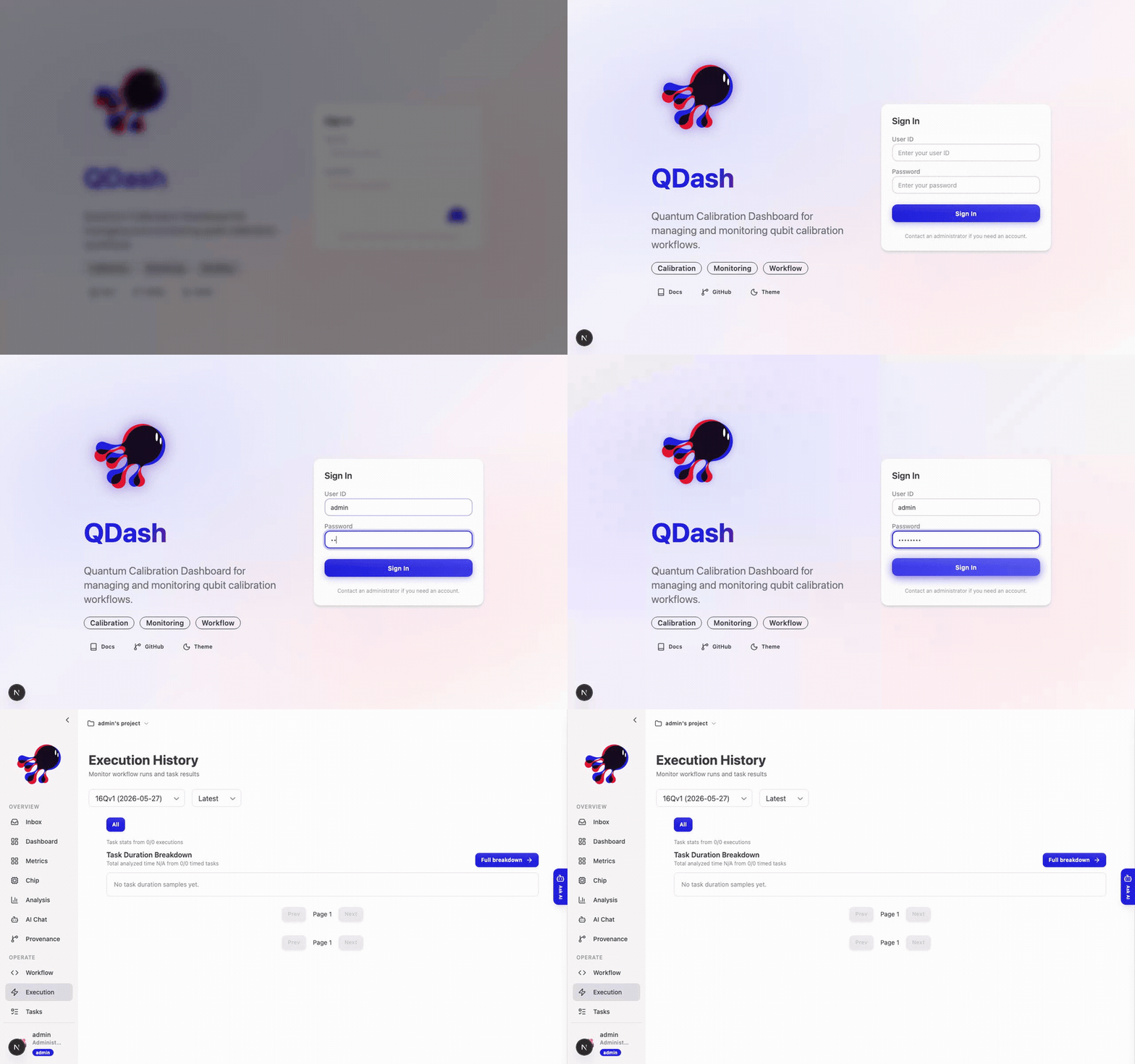
Authentication and User Management
QDash uses JWT-based authentication with a two-tier role system for secure access control. This guide explains how authentication works and how to manage users and passwords.
Authentication Overview
QDash implements a secure authentication system with the following characteristics:
- JWT-based sessions: Access tokens are used for API authentication
- Admin-controlled signup: Only administrators can create new user accounts
- Two-tier role system: System roles (admin/user) and project roles (owner/viewer)
System Roles
System roles control platform-wide permissions:
| Role | Capabilities |
|---|---|
| Admin | Create new users, reset any user's password |
| User | Standard access, can only change own password |
How Admin Role is Assigned
The admin role is assigned based on the QDASH_ADMIN_USERNAME environment variable. When a user is created with a username matching this variable, they are automatically assigned the admin role.
# Example: Set admin username in environment
export QDASH_ADMIN_USERNAME=adminUser Registration
Only administrators can register new users. When a new user is created:
- Admin calls the registration endpoint with username and password
- A default project is automatically created for the new user
- The new user receives an access token for immediate use
API Example
curl -X POST "https://your-qdash-instance/auth/register" \
-H "Authorization: Bearer ADMIN_TOKEN" \
-H "Content-Type: application/json" \
-d '{
"username": "newuser",
"password": "secure_password",
"full_name": "New User"
}'Password Management
QDash provides two methods for password management:
1. Self-Service Password Change
Any authenticated user can change their own password by providing the current password.
| Endpoint | Method | Auth Required |
|---|---|---|
/auth/change-password | POST | Yes (any user) |
Request Body:
{
"current_password": "old_password",
"new_password": "new_secure_password"
}Example:
curl -X POST "https://your-qdash-instance/auth/change-password" \
-H "Authorization: Bearer YOUR_TOKEN" \
-H "Content-Type: application/json" \
-d '{
"current_password": "old_password",
"new_password": "new_secure_password"
}'2. Admin Password Reset
Administrators can reset any user's password without knowing the current password. This is useful for password recovery scenarios.
| Endpoint | Method | Auth Required |
|---|---|---|
/auth/reset-password | POST | Yes (admin only) |
Request Body:
{
"username": "target_user",
"new_password": "new_secure_password"
}Example:
curl -X POST "https://your-qdash-instance/auth/reset-password" \
-H "Authorization: Bearer ADMIN_TOKEN" \
-H "Content-Type: application/json" \
-d '{
"username": "target_user",
"new_password": "new_secure_password"
}'Login and Logout
Login
Authenticate with username and password to receive an access token.
curl -X POST "https://your-qdash-instance/auth/login" \
-H "Content-Type: application/x-www-form-urlencoded" \
-d "username=your_username&password=your_password"Response:
{
"access_token": "your_access_token",
"token_type": "bearer",
"username": "your_username",
"default_project_id": "project_id"
}Logout
The logout endpoint confirms the logout action. Since tokens are managed client-side, the client is responsible for removing stored credentials.
curl -X POST "https://your-qdash-instance/auth/logout"API Authentication
Include the access token in the Authorization header for all authenticated requests:
Authorization: Bearer <your-access-token>Getting Current User Info
curl -X GET "https://your-qdash-instance/auth/me" \
-H "Authorization: Bearer YOUR_TOKEN"Response:
{
"username": "your_username",
"full_name": "Your Name",
"disabled": false,
"default_project_id": "project_id",
"system_role": "user"
}Permission Summary
| Action | User | Admin |
|---|---|---|
| Login/Logout | ||
| View own profile | ||
| Change own password | ||
| Register new users | ||
| Reset any user's password |
Security Best Practices
- Use strong passwords: Ensure all passwords meet complexity requirements
- Protect admin credentials: Keep admin account credentials secure
- Rotate tokens: Periodically change passwords to refresh access tokens
- Monitor access: Review user activity and access patterns regularly
Troubleshooting
"Incorrect username or password" error
- Verify the username and password are correct
- Check if the user account is disabled
"Only administrators can..." error
- This action requires admin privileges
- Contact your system administrator
"User not found" error
- The specified username does not exist
- Check the username spelling
Related Documentation
- Projects and Sharing - Project-level permissions and collaboration
- Database Structure - User and authentication data models